
I remember sitting in a cramped studio in Birmingham, staring at a waveform that looked less like a human voice and more like a mountain range during a thunderstorm. I had just spent three hours chasing a guest through a sensitive interview, only to realize the constant, whirring drone in the background wasn’t a distant plane—it was my own machine. People will tell you that you need a $500 noise-reduction plugin or a studio-grade interface to fix this, but that’s nonsense. If you’re wondering how to deal with a noisy laptop fan while recording, the answer isn’t in your wallet; it’s in your workflow and your physical setup.
I’m not here to sell you a subscription to some magical AI audio cleaner that promises miracles but delivers artifacts. I’ve spent twenty years cutting audio, and I know that once a noise is baked into the file, you’re just playing a game of damage control. Instead, I’m going to give you the unfiltered reality of how to manage your hardware, from thermal throttling tricks to mic placement tactics that actually work. We’re going to focus on preventing the mess before you even hit the red light.
Lowering Laptop Cpu Temperature Is Better Than Buying Gear

Look, I’ve seen people drop two grand on a Shure SM7B only to realize they’ve just given a high-end microphone a front-row seat to their computer’s internal meltdown. You cannot out-engineer physics. If your processor is redlining because you have forty Chrome tabs and a video editor open in the background, that fan is going to kick in, and it’s going to sound like a vacuum cleaner. Before you go hunting for more audio recording noise reduction techniques, try actually managing your hardware.
Start with the basics of lowering laptop CPU temperature: close every single non-essential application. I mean everything. If you aren’t using it for the specific take you are capturing, kill the process. If you’re working in a cramped space, get the machine off your lap or a soft surface; even a cheap stand can help. If you’re really desperate, laptop cooling pads for creators are a legitimate, low-cost fix that works better than any software plugin ever will. It’s much easier to prevent the heat from building up than it is to try and scrub that high-frequency whine out of your final mix.
Smart External Microphone Placement Tips to Hide the Hum
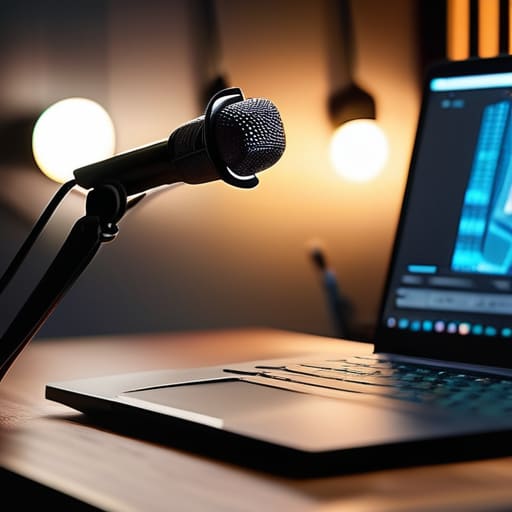
If you can’t stop the fan from spinning up, you need to change the geometry of your setup. Most beginners point their mic straight at their mouth and leave the laptop sitting right there on the desk like a ticking time bomb. Instead, try to create as much distance as possible between the fan and the capsule. I usually recommend using a boom arm to get the microphone high and away from the desk surface. This isn’t just about distance; it’s about directional physics. If you’re using a cardioid mic, make sure the “dead zone” (the rear of the microphone) is pointed directly at the laptop.
Don’t just think about the mic, though—think about the desk. If your laptop is sitting on a hard surface, that chassis acts like a sounding board, vibrating the hum straight into your stand. Using a heavy desk mat or even a thick towel can help dampen that mechanical vibration. If you’re really struggling, look into some basic external microphone placement tips like using a shock mount to decouple the mic from the table. It’s a much more effective way to manage the noise than trying to fix it in post.
Five ways to stop the hum without opening your wallet
- Kill every background process you aren’t using. If you have Chrome open with twenty tabs, Slack running, and a cloud backup syncing in the background, your CPU is working overtime. Close everything except your DAW or your recording software. It’s not just about the noise; it’s about giving the processor breathing room so it doesn’t have to ramp up the fan speed mid-sentence.
- Get the machine off your desk. If your laptop is sitting on a wooden tabletop, that surface is acting like a sounding board for the vibration of the internal fan. Put the laptop on a hard, flat surface away from your microphone—ideally on a separate stand or even a side table—to break that physical connection.
- Use a “dead” space for the hardware. If you can, tuck the laptop into a corner or even under a desk (as long as it still has airflow) so the direct line of sound between the fan and your mic is obstructed. You aren’t trying to muffle it entirely, just redirecting the sound waves so they aren’t hitting the diaphragm head-on.
- Check your power settings. Many laptops default to a “High Performance” mode that keeps the clock speed high and the fans spinning fast even when they don’t need to. Switch to “Power Saver” or “Balanced” mode during your session. You might see a tiny bit of latency, but a slightly slower processor is better than a loud one.
- Record your room tone first. This isn’t a “fix” for the noise, but it’s the only way you’ll survive the edit. Sit in silence for sixty seconds with your mic live. Capture the exact frequency of that fan. When you go to use a noise reduction plugin later, you’ll have a clean sample of the enemy to feed it, rather than guessing what the noise sounds like.
The bottom line
Stop looking at your gear list when the problem is your environment; if you can hear the fan in your headphones, your listeners will hear it in their ears, no matter how much you spend on a microphone.
Manage your hardware’s workload before you hit record by closing every unnecessary background application and plugging in your power supply to prevent the CPU from ramping up its cooling cycle mid-sentence.
Use physical distance and directional microphones to your advantage, placing the laptop as far from the mic as your cables allow and using the mic’s polar pattern to reject the noise coming from the machine.
The hard truth about your gear
You can spend three grand on a Neumann mic, but if you’re recording in a room where your laptop sounds like a jet engine taking off, you’re just capturing high-fidelity noise. Stop looking for a better microphone and start looking at your CPU load and your physical distance from the machine.
Nadine Okafor
The bottom line on fan noise
At the end of the day, fixing a noisy laptop isn’t about finding a magical plugin that scrubs out the frequency; it’s about the grunt work you do before you even hit record. You’ve looked at managing your CPU load to keep the heat down, you’ve experimented with moving the machine further from the mic, and you’ve likely realized that physical distance and airflow matter more than any expensive condenser mic you could buy. If you can’t stop the fan from spinning up, you have to change the environment or the way you’re capturing the sound. It’s about being proactive rather than reactive in the edit, because once that digital noise is baked into your waveform, you’re just fighting a losing battle against math.
Don’t let a whirring fan make you feel like you aren’t a “real” producer. I’ve spent hours in tiny, poorly insulated rooms where every piece of tech sounded like it was trying to take off. The difference between a hobbyist and a professional isn’t that the professional has a silent studio; it’s that the professional understands the limitations of their gear and knows how to work around them. Keep troubleshooting, keep adjusting your mic placement, and keep recording. The craft is mostly unglamorous, but once you get that clean, steady signal, it’s all worth it.